
Spaces
A Space is the top-level container in Bandmaster. Think of it as your organization — a church, a school music department, a venue, or a band management company. Everything in Bandmaster — bands, performances, and members — lives inside a Space.
What is a Space?
A Space groups together:
- Bands — ensembles or performing groups within your organization
- Performances — all events (rehearsals, concerts, services) scheduled for those bands
- Members — the people who have access to the Space
You can be a member of multiple Spaces (e.g., you play in one church band and also manage a school orchestra program).
Creating a Space
- Open the workspace switcher above the desktop sidebar or in the compact header.
- Click Create space.
- Enter a Space Name (e.g., "First Baptist Church", "Jefferson High School Band").
- Click Create.
Your new Space appears in the workspace switcher. Select it there to make it the current workspace.
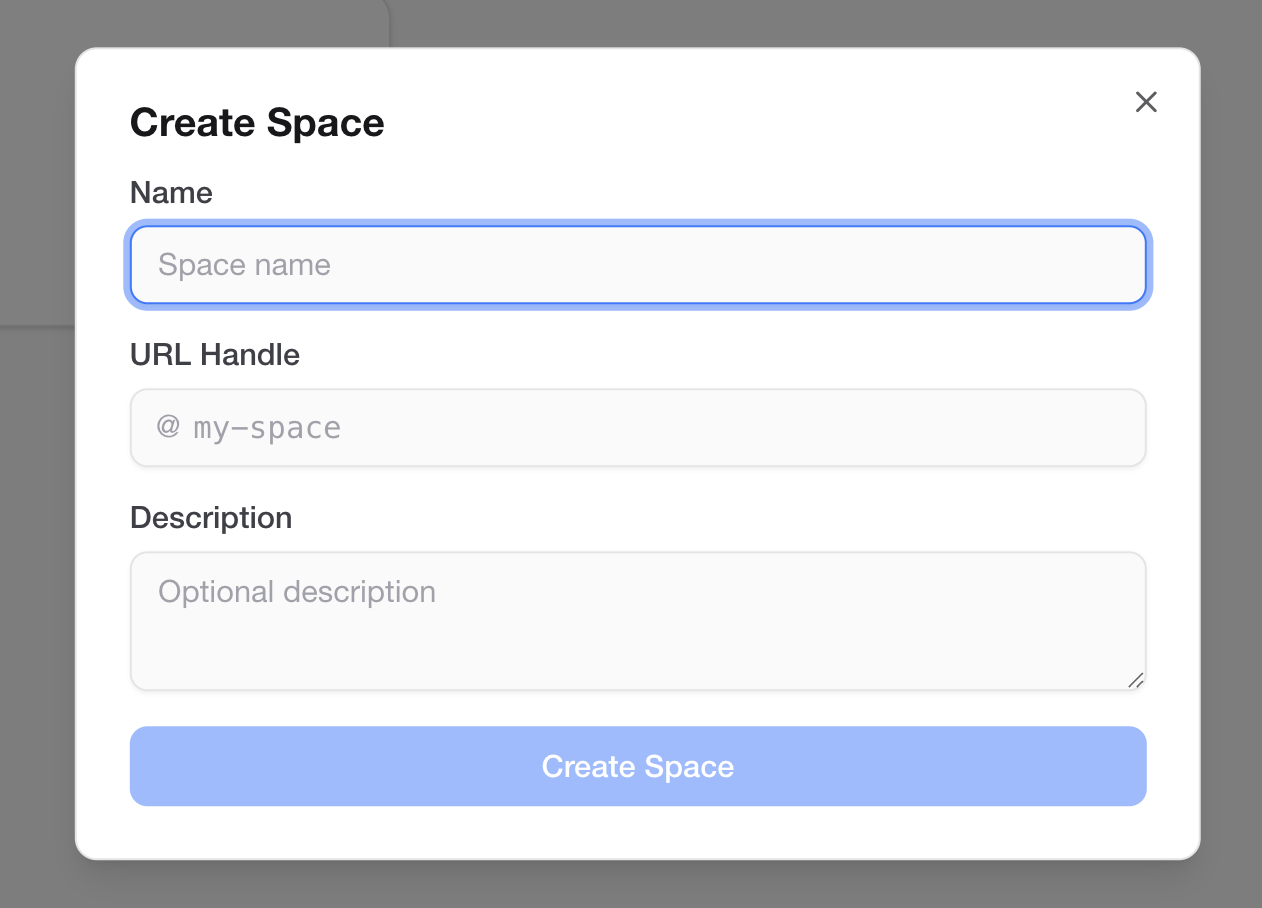 Create space dialog
Tip: The Space name becomes its URL slug. Choose a clear, recognizable name so members can easily identify it.
Space Page Overview
When you open a Space, you'll see several sections:
Bands
A list of all bands within the Space. Click a band name to open its detail page. Use + Add Band to create a new band.
Performances
All performances for all bands in the Space, displayed in two views:
- Calendar view — a monthly calendar showing performances as dots or event blocks on each day
- List view — a chronological list with title, date, band, and status
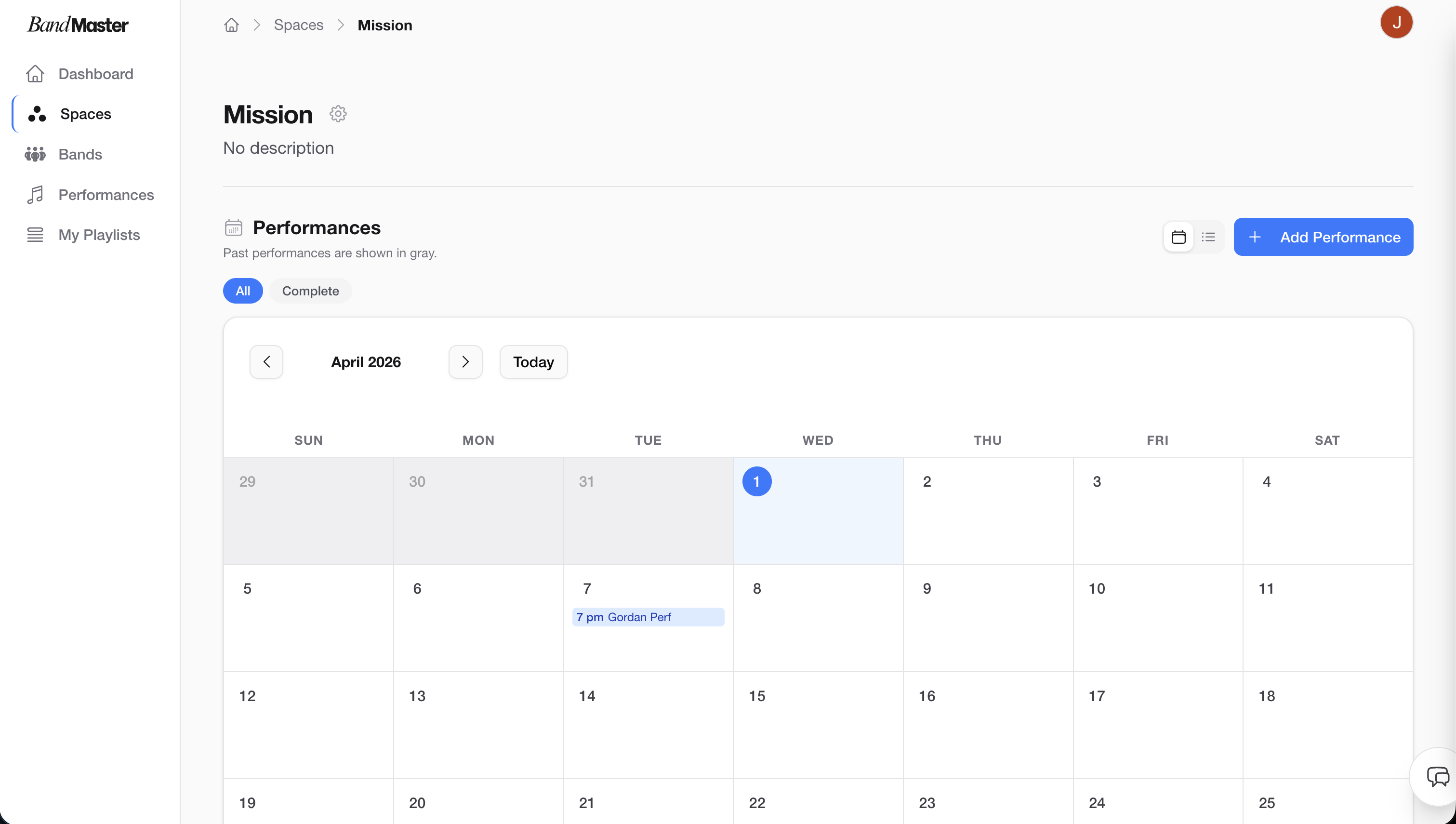 Space overview page
Switch between views using the Calendar / List toggle at the top of the Performances section.
Calendar View
The calendar highlights days that have scheduled performances. Click on a day to see performances for that date. Click a performance title to open it.
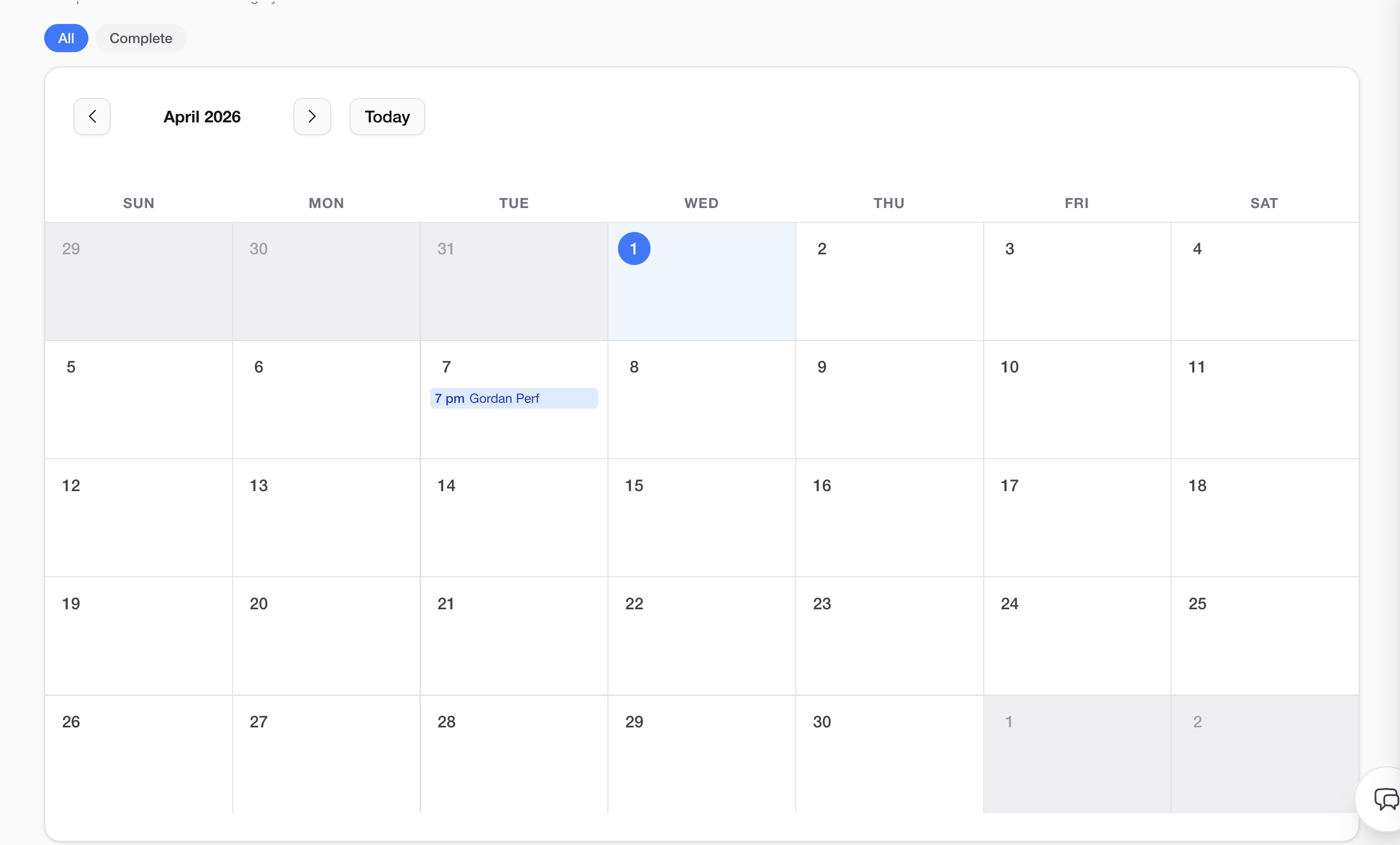 Space calendar view
Tip: Use the calendar view to quickly scan for busy weeks or identify gaps in your schedule.
Members
The Members tab shows everyone with access to the Space and their roles (Owner, Manager, or Member). Use this section to invite new members or change existing roles. See the Members guide for full details.
Space Settings
To access Space Settings, open the Space page and click the Settings tab or gear icon.
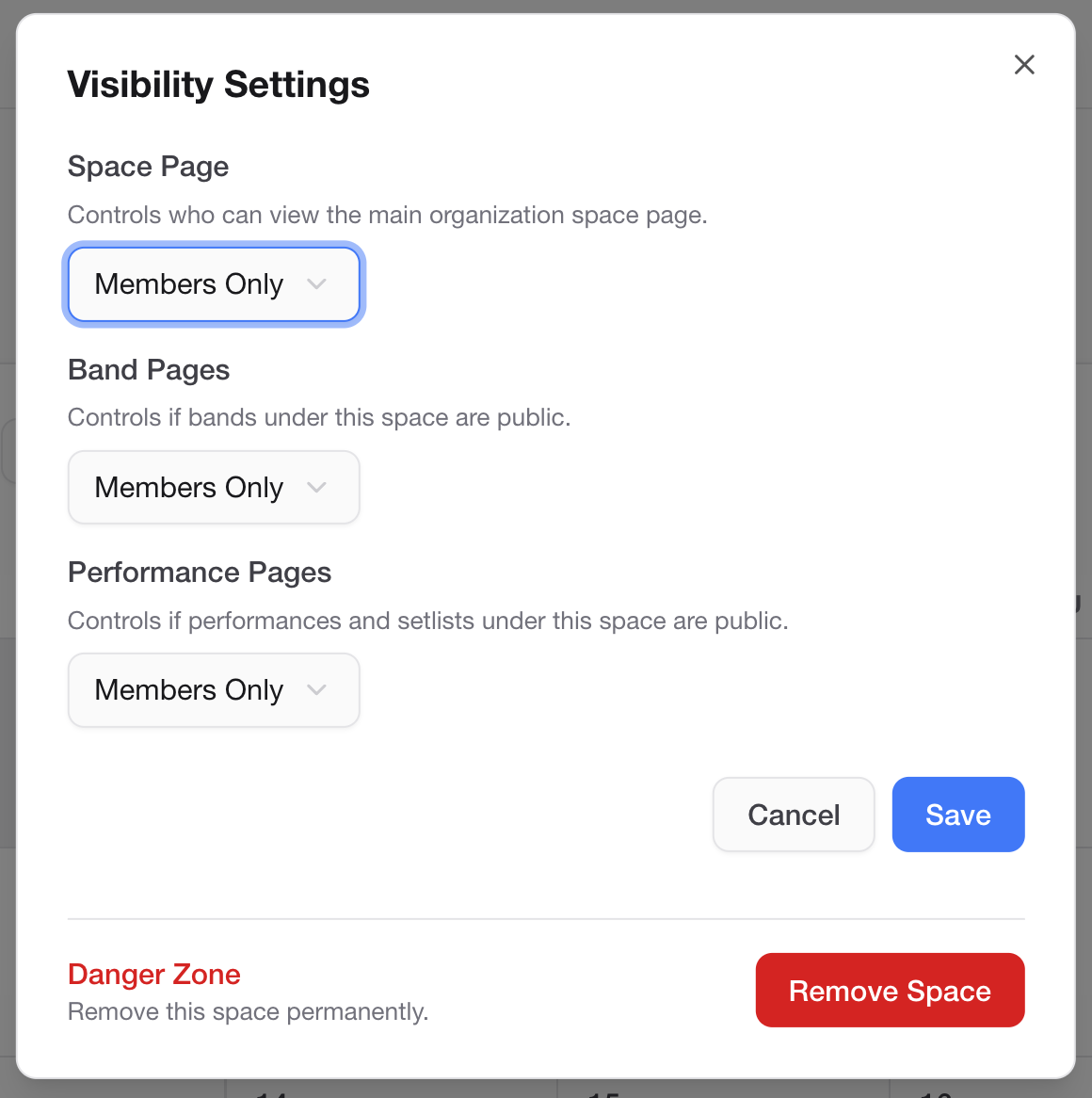 Space settings
Available settings include:
- Space Name — rename the Space
- Invite Link — generate a shareable link so people can join without an individual email invitation
- Stage Shapes — define stage layout templates used in performances
- Instrument Categories — customize instrument groupings for your organization
Navigating Between Spaces
If you belong to multiple Spaces, you can switch between them from:
- The workspace switcher above the desktop sidebar
- The workspace switcher in the compact header
See Home and Navigation for workspace selection, persistence, and recovery behavior.
Deleting a Space
Warning: Deleting a Space permanently removes all bands, performances, and associated data. This cannot be undone.
To delete a Space:
- Open the Space's Settings page.
- Scroll to the Danger Zone section.
- Click Delete Space and confirm the action.