
Members
Space membership can be explicit (Owner, Manager, or Member) or derived from
an active membership or direct role in a real Band attached to the Space. The
authoritative membership boundary, including which relationships can be
removed from a Space, is documented in docs/SPACE_MEMBERSHIP.md.
Bandmaster uses a two-level membership model: people have Space access (with Space-level roles) and can also belong to individual Bands (with Band-level roles). Space access may be explicit or derived from an attached Band; this lets you control organization-wide access separately from ensemble participation.
Space Membership
Space Roles
| Role | What they can do |
|---|---|
| Owner | Full control: manage members, bands, performances, and Space settings |
| Manager | Create and edit bands and performances; invite members |
| Member | View performances and band information (read-only) |
Inviting a Member to a Space
- Open the Space page.
- Click the Members tab.
- Click Invite Member.
- Enter the person's email address in the invite dialog.
- Select the role you want to assign (Owner, Manager, or Member).
- Click Send Invite.
Bandmaster sends an invitation email to that address. The invitee follows the link to accept and join the Space.
 Space members tab
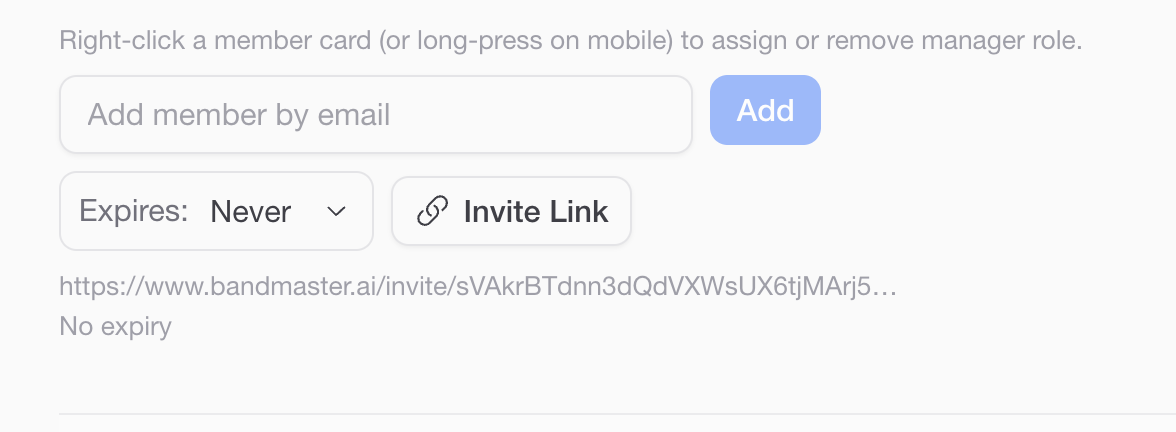 Invite member dialog
Tip: You can also share an invite link instead of entering an email address. In the Space Settings, click Copy Invite Link and share it directly (e.g., via chat or text message). Anyone who opens the link can join the Space.
Accepting an Invite
When someone receives an invitation email:
- They click the Accept Invitation button in the email.
- If they do not yet have a Bandmaster account, they are prompted to sign up first.
- After signing in, they are automatically added to the Space with the assigned role.
If they received an invite link instead of an email, they simply open the link in a browser and follow the same sign-in or sign-up steps.
Band Membership
Members of a Space can be added to specific bands within that Space. Each band maintains its own roster and role assignments.
Band Roles
| Role | What they can do |
|---|---|
| Band Master | Full admin of the band: manage members, performances, and band settings |
| Manager | Create and edit performances; manage the band's member list |
| Member | View the band's performances and member list (read-only) |
Adding a Member to a Band
- Navigate to the band's page.
- Click the Members section.
- Click Add Member.
- Search for or select the Space member you want to add.
- Choose their Band Role (Band Master, Manager, or Member).
- Click Add.
The person must already be a member of the Space before they can be added to a band.
 Band members section
Tip: A Band Master has admin rights within that band only — it does not grant a Space-level role or Space roster authority. Membership in an attached Band may still provide derived Space access; use Space roles for explicit organization-wide administration.
Managing Member Permissions
Changing a Space Role
- Open the Space page and go to the Members tab.
- Find the member whose role you want to change.
- Click the role badge or the options menu next to their name.
- Select the new role from the dropdown.
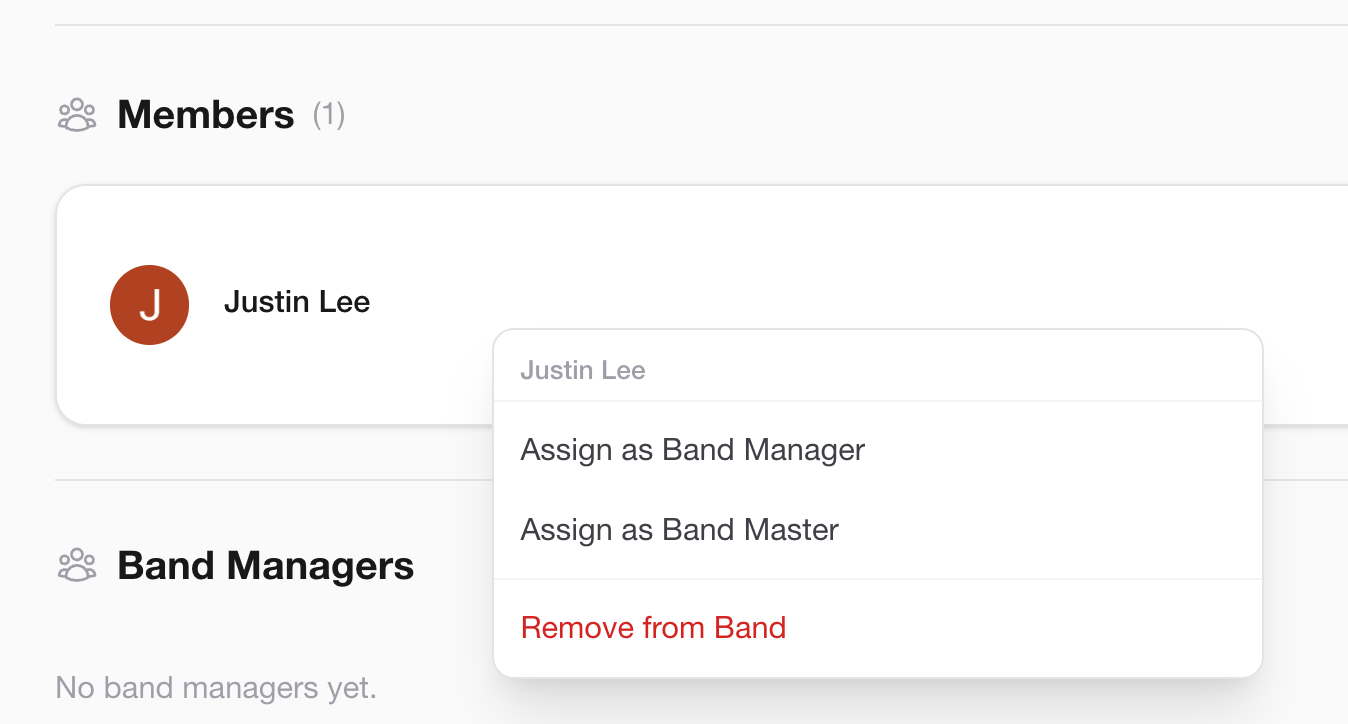 Role selection dropdown
Changing a Band Role
- Open the band page and go to the Members section.
- Find the member and click their current role or the options menu.
- Select the new band role from the dropdown.
Note: Only Space Owners, Space Managers, and Band Masters can change roles.
Removing a Member
Removing from a Band
- Open the band page and go to the Members section.
- Click the options menu (three dots) next to the member's name.
- Select Remove from Band.
- Confirm the action.
The person remains a member of the Space and any other bands they belong to.
Removing from a Space
- Open the Space page and go to the Members tab.
- Click the options menu next to the member's name.
- Select Remove from Space.
- Confirm the action.
Warning: Removing an explicit Space relationship does not remove the person's direct membership or roles in any Band. A person who appears in the Space only through a Band must be removed from that Band instead. A person with both kinds of relationship remains in the Space through the Band.