
Bands
A Band is a group within a Space that has its own members and performances. Bands let you organize ensembles, sections, or any performing group under one Space, each with independent rosters, schedules, and settings.
What is a Band?
A Band lives inside a Space (your organization). It has:
- A Members list — the people who belong to that ensemble
- A Performances list — all events scheduled for that band
- Settings — the band's name, default section configuration, and optional parent band
A single Space can contain many bands. For example, a music school Space might have "Orchestra", "Jazz Ensemble", and "Chamber Choir" as separate bands.
Navigating from a Space to a Band
- Open the workspace switcher above the desktop sidebar or in the compact header.
- Expand a parent Band when you need to reveal its child Bands.
- Select a Band to make it the current workspace, then open its detail page from Home or Search.
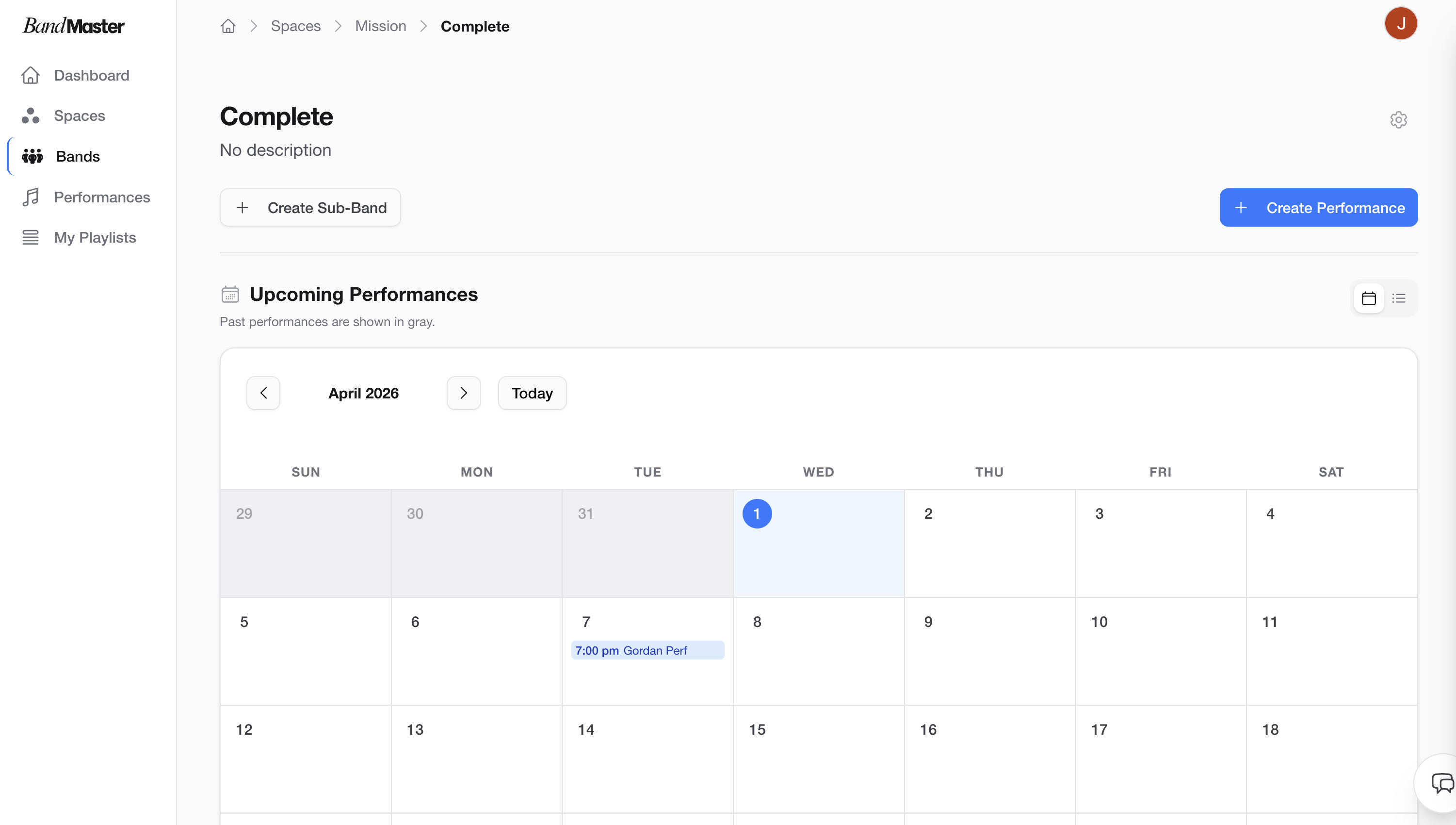 Band overview page
Adding a Band to a Space
- Select the Space in the workspace switcher.
- Open the switcher again and click Create band.
- In the dialog that appears, enter a Band Name.
- Click Create.
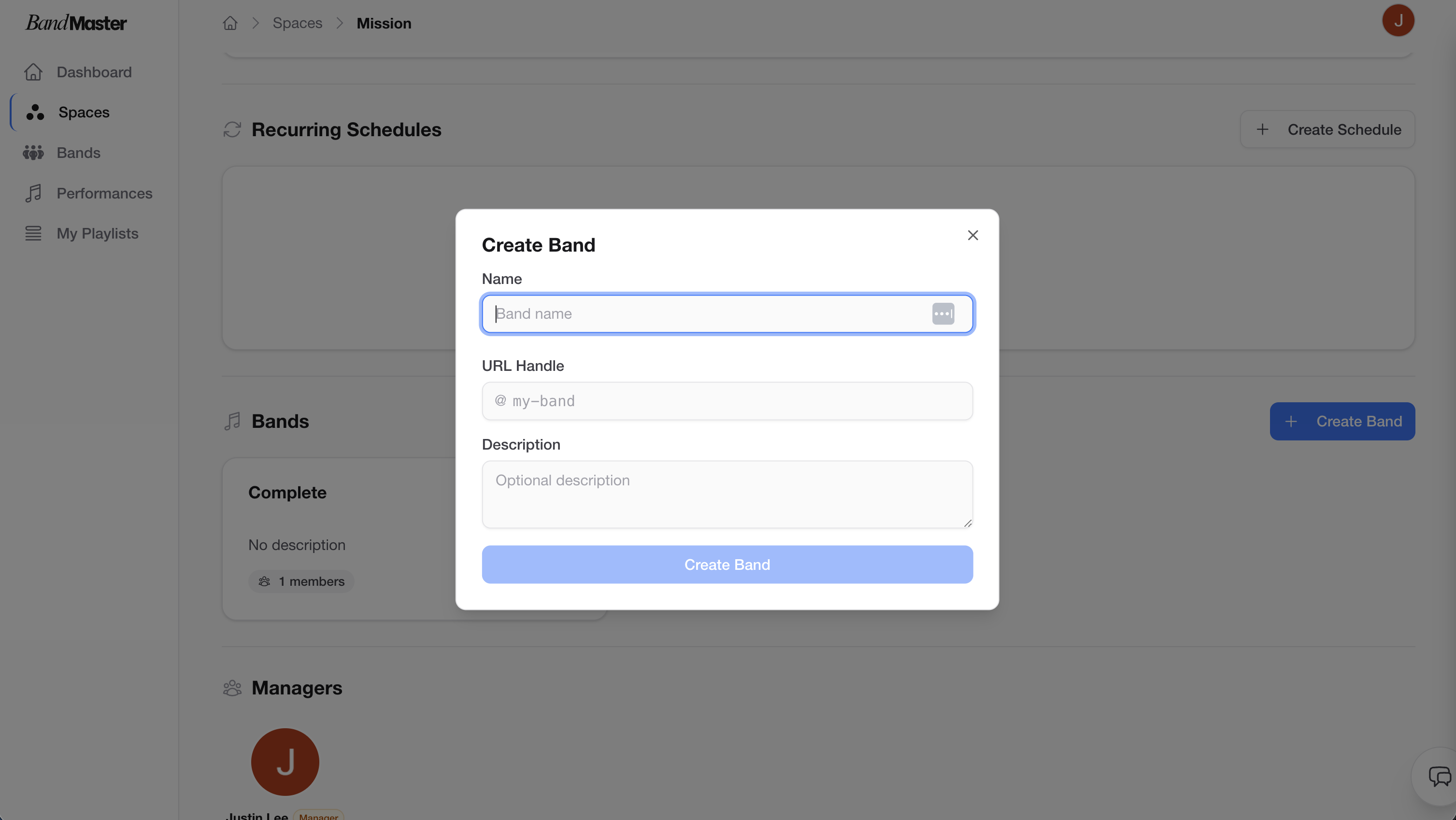 Create band dialog
Tip: Only Space Owners and Managers can create bands. If you do not see the "+ Add Band" button, ask your Space Owner to grant you a Manager role.
Band Page Overview
After opening a band you will see two main sections:
Performances
A list of all performances (rehearsals, concerts, events) assigned to this band. Each row shows the title, date, and status. Click any performance to open its detail view.
Members
A list of everyone who belongs to this band. Each member is shown with their name and band role (Band Master, Manager, or Member). Use this section to invite new members or manage existing ones.
Band overview page
Sub-Bands
A sub-band is a band nested inside a parent band. Sub-bands are useful for modeling sections within a larger ensemble — for example:
- Orchestra (parent band)
- Strings (sub-band)
- Brass (sub-band)
- Woodwinds (sub-band)
Sub-bands have their own members and performances, independent of the parent band.
Creating a Sub-Band
- Open the parent Band's detail page.
- Click Create Sub-Band.
- Enter the sub-band's name (e.g., "Strings").
- Click Create.
The sub-band will appear nested under the parent band in the Space's band list.
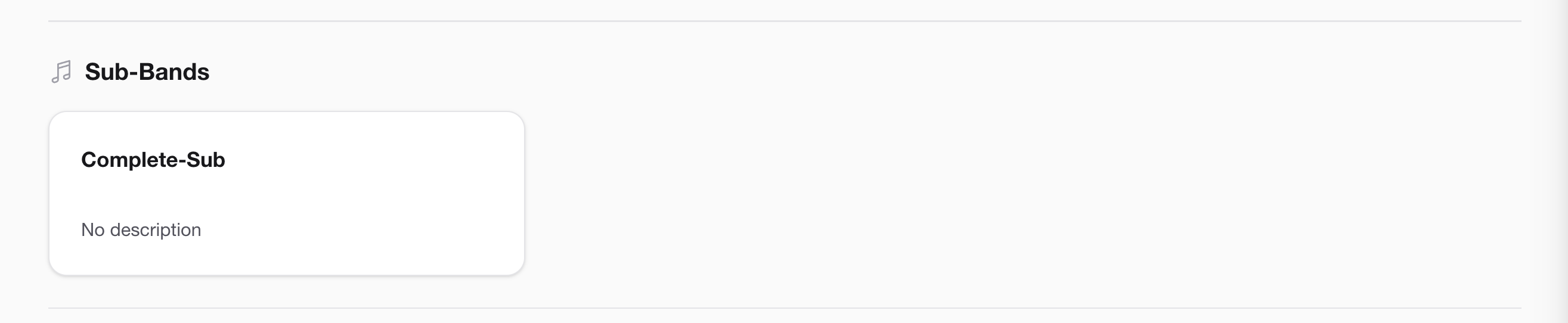 Parent and sub-band relationship
Tip: You can nest sub-bands as deep as you need. A sub-band can itself be the parent of another band.
Band Settings
To open Band Settings, navigate to the band and click the Settings tab (or gear icon).
Name
Change the display name of the band. This name appears throughout Bandmaster wherever the band is referenced.
Default Section Configuration
Performances can display different sections (Queue, Music Sheet, Setlist, Availability, Notes, Live). The Default Section Configuration controls which sections are shown by default for new performances created under this band.
- In Band Settings, find Default Section Configuration.
- Toggle each section on or off.
- Save your changes.
Note: Changing the default section configuration only affects newly created performances. Existing performances retain their own individual section settings.